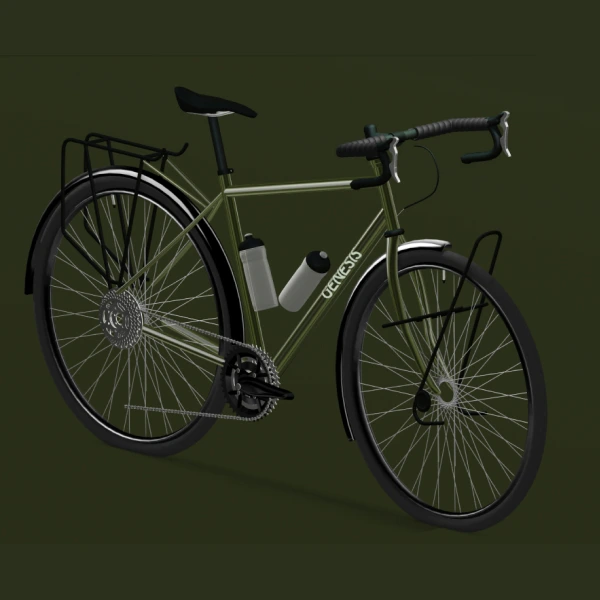
If you’ve ever tried embedding a Spline asset into Webflow and found yourself slowly losing the will to live… welcome. You’re not alone. There’s barely any documentation, zero real-world examples, and endless moments where you’re like:
“Why the hell is this not working? Why is my 3D model huge on mobile? Why is everything grey? Why is it behind nothing? Why is it in front of everything?”
This guide fixes all of that — step-by-step — using the actual workflow I use when animating 3D objects (like Paddy) across multiple Webflow sections.
It’s the guide I wish existed when I started.
Let’s get into it.
Why Your Spline Embed Probably Isn’t Working
Most Spline/Webflow issues come down to one thing:
Your Spline file isn’t optimised for the web.
And I’m not just talking about a “little heavy.”
I’m talking: 20MB I-just-broke-the-internet heavy.
If you want to go deeper into optimisation, I’ve got a full guide on that here: Optimizing Spline 3D Files for Fast-Loading Websites in Webflow and Framer.
Step 1: Optimise Your Spline Asset Before Embedding
This step is boring but essential. Your Spline scene will not run smoothly on a website unless it’s lean.
Here’s what slows everything down:
- too many polygons
- too many objects
- too many materials
- too many lights (huge performance killer)
If your scene is overbuilt, consider simplifying it — or use an alternative like exporting a video. I explain that workflow here too: How To Achieve Realistic 3D Textures In Spline.
Step 2: Make Your Spline Scene Responsive
This is the part that gets people shouting “Spline doesn’t work on mobile!”
Yes it does — you just haven’t enabled it yet.
In Spline:
- Click the Scene
- Turn on Responsive
- Turn on Auto Zoom
Without Auto Zoom, your object refuses to scale on mobile, and instantly looks like a turd.
If you’re new to Spline or need help understanding these settings, start here: Spline 3D Tips: 3 Things Every Beginner Should Know
Step 3: Configure Your Play Settings
Go to:
Viewer → Play Settings
Change these:
- Background color → Off
- Page scroll → Yes
- Orbit → Off
- Pan → Off
- Zoom → Off
- Hover → Off
You want Webflow to control animation, not Spline.
And then — VERY IMPORTANT:
Click “Update Viewer.”
Because Spline likes to pretend it saved your settings when it absolutely did not.
If you want to dive deeper into backgrounds, materials or lighting, these tutorials help:
Spline Textures Tutorial: Matcap, Depth & Image Layers
3D Reflective Glass: Spline Tutorial For Beginners
Step 4: Copy Your Production Link
Go to Export → Production → Copy Link.
This is the link Webflow will load your scene from.
If you want your watermark gone, you’ll need a paid Spline plan — or build a custom viewer, which I explain here: How to Create an AI Voice Assistant Using Spline and OpenAI
Step 5: Embed Spline Into Webflow
Create a full-screen fixed container:
- Position fixed
- All sides: 0
- Width: 100vw
- Height: 100vh
- Z-index: 0
This makes the Spline scene sit behind all text, sections, and content.
Now:
- Press CMD + K
- Select Spline Scene
- Paste your Production link
- Name it something sensible (I didn’t — learn from me)
If you want to explore more 3D-with-Webflow workflows, I’ve got a guide here: How to Create a 3D Website Using Spline & Webflow
Step 6: Animate Your Spline Scene on Scroll
This is where things get sexy.
In Webflow:
- Select your Spline object
- Go to Interactions
- Choose While Page Is Scrolling
- Add Spline actions
- Animate rotation, scale, position
IMPORTANT:
Spline rotation values are NOT degrees.
- 6.3 = full rotation
- 3.1 = half rotation
This catches EVERYONE out.
If you're new to animation in Webflow, this article helps: How to build a 3D website in 10 mins
Scaling the Object
To grow/shrink the 3D model on scroll:
- The last 3 values = X, Y, Z scale
- Keep top small (e.g. 10)
- Grow big at bottom (e.g. 75)
This makes your 3D object feel like it’s entering the scene dramatically.
If you want to improve how your assets scale across breakpoints, read: How to Make 3D Models Fully Responsive for Web & Mobile (Spline Tool)
Step 7: Fix Backgrounds and Layering
If everything suddenly turns grey, it’s because:
- You turned OFF the background in Spline
- But didn’t set a background in Webflow
Pick one place to control the background — Spline or Webflow.
If you want to customise backgrounds further, this might help: 3D Blobs: A Beginners Guide To Making 3D Blobs
Step 8: Make It Work on All Screen Sizes
The quickest way to test:
- Publish your Webflow site
- Inspect → Device Mode
- Switch to iPhone SE
- Scroll and watch the animation
If it works there, it works everywhere.
If you want a full roadmap for learning 3D layouts: How to learn 3D using Spline Tool: 3 Step Roadmap
When You Should Not Use Spline
This is painful but necessary:
Sometimes your Spline scene is just too heavy for the web.
In that case:
- export a video, or
- export an image, or
- export a WebM (my favourite hack)
I cover converting 3D motion into optimised output here: Convert 2D Images to 3D Models Easily (Beginner Friendly!)
Final Thoughts
Spline is incredibly powerful — but only when used with intention.
If your Spline object is a key storytelling moment, optimise it properly.
If not, use a video or image. Your website (and your user’s GPU) will thank you.
If you need more inspiration, here are 15 of the best 3D websites made in Spline: 15 Best Spline Websites
%20(1).jpg)